Budget
MoneySplit uses an envelope-style budget: give money a job, track the activity that reaches each category, and review the plan throughout the period.
Budget Dashboard
Section titled “Budget Dashboard”The Budget Dashboard is the starting point for monthly or paycheck budgeting.
- Create a budget period and choose the matching recurring mode.
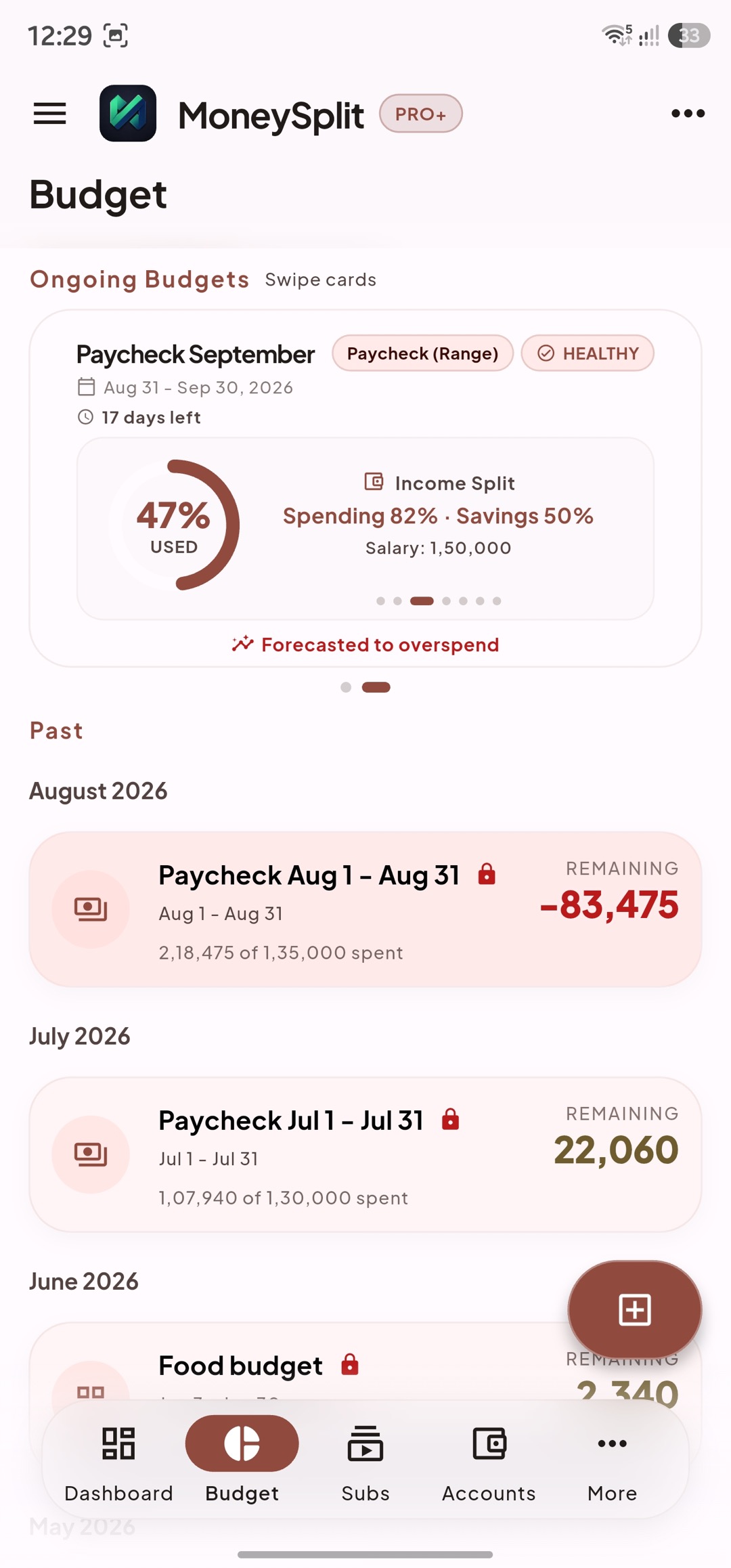
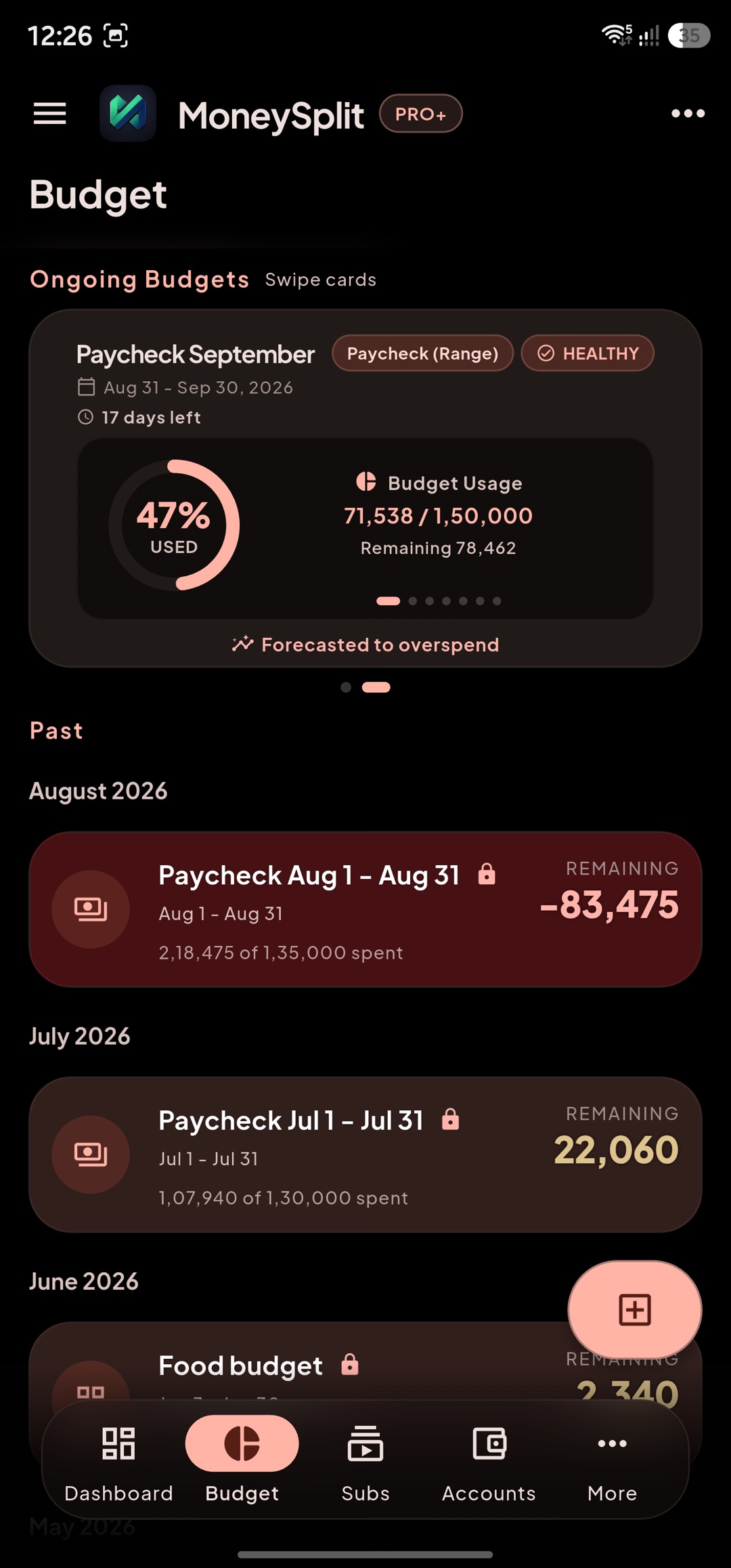
- Open an active budget from the carousel; upcoming and closed periods remain available for planning and review.
- Refresh ongoing periods after importing or correcting transactions.
- Use the forecast card to compare your current pace with the rest of the period.
The master budget is a spending plan, not your bank balance. Its amount can differ from the cash currently in an account.
Budget Detail
Section titled “Budget Detail”Budget Detail brings the plan, category activity, and follow-up work together.
- Assign money to categories and monitor their remaining amount.
- Expand parent categories to see the child categories drawing from the same parent envelope.
- If children need more than the parent allocation, the parent envelope expands to keep the category hierarchy accurate.
- Status badges identify unbudgeted spending, near-limit categories, overspending, underfunded goal targets, and healthy categories.
- Use View all transactions to validate the transactions behind the budget numbers.
Review unbudgeted spending
Section titled “Review unbudgeted spending”The Unbudgeted card lists expense categories that have spending but no assigned amount. Open it to review each category, cover one category with its recorded spend, or cover all listed categories at once. Categories linked to savings goals are shown in the goals flow instead, so they are not funded twice.
Fund category-linked goals
Section titled “Fund category-linked goals”The Savings & Goals card summarizes category targets in the current period.
- It compares the current assignment with each goal’s recommended monthly pace.
- Open it to adjust a goal category directly and see active and completed goals separately.
- Use Fund underfunded goals in Quick Budget to top up only the missing recommended amounts.
Budget filters
Section titled “Budget filters”Filters determine which transactions count toward a budget:
- Accounts: include all accounts or restrict the budget to selected accounts.
- Include tags: include tagged transactions according to the budget type.
- Exclude tags: remove matching transactions after the include rule is applied.
- A manually force-linked transaction is always counted, even when it has an excluded tag.
If the same tag is selected in both lists, MoneySplit keeps it in only one list. For bounded monthly and paycheck budgets, a transaction is included when it is in range or has an included tag. A bounded custom budget requires both the date range and an included tag. An open-ended tagged budget requires an included tag. With no include tags, bounded budgets use their normal date range. The transaction list uses these same rules, so its totals match the budget.
Period Management
Section titled “Period Management”Budget periods are explicit, which makes rollover and history reliable.
- A budget can be monthly, paycheck-based, custom, or open-ended depending on the selected setup.
- Only active, in-range budgets can be changed. Closed, finalized, expired, and inactive-recurring-mode budgets are read-only.
- Finalize a completed period to lock its history and calculate rollover outcomes.
- Use the current recurring mode to focus the dashboard on monthly or paycheck periods.
- Edit accounts and tag filters while the budget is active; they become read-only after the period is finalized or out of range.
Budget Guides
Section titled “Budget Guides”A practical order of operations
Section titled “A practical order of operations”- Set the master amount for the period.
- Fund essential categories and active category targets.
- Review unbudgeted spending and cover deliberate gaps.
- Check the forecast and category status badges during the period.
- Finalize only after the period is complete.
Quick Budget and income allocation
Section titled “Quick Budget and income allocation”Quick Budget can reuse last month’s budget or spending, use a three-month average, fill only unbudgeted categories, fund underfunded goals, or reset allocations. Each applied Quick Budget template can be undone immediately from its confirmation message.
Choose Allocate income from Quick Budget to split a planned or actual income pool between expense categories and standalone savings goals. You can enter fixed amounts or percentages, start from a 50/30/20-style preset, customize every allocation, and apply only when the total does not exceed the chosen income amount. Applying the plan can also update the master budget limit.
When a category is over budget, use the cover-overspending suggestion in its assignment sheet to clear the deficit quickly.
Category hierarchy and envelopes
Section titled “Category hierarchy and envelopes”Assigning money to a parent category creates a shared ceiling. Child categories let you see more detail without creating an unrelated pool of money. Prefer child allocations for distinct spending decisions, and use the envelope view to review how parent and child amounts relate.
Useful reminders
Section titled “Useful reminders”- Keep account scope and tags intentional; changing either changes what the budget measures.
- A negative remaining amount means the category is over budget.
- A category target is a planned savings obligation; it is different from a standalone goal balance.
- Leave a buffer for irregular costs rather than treating every unassigned amount as available to spend.