Smart Scan
Smart Scan Home
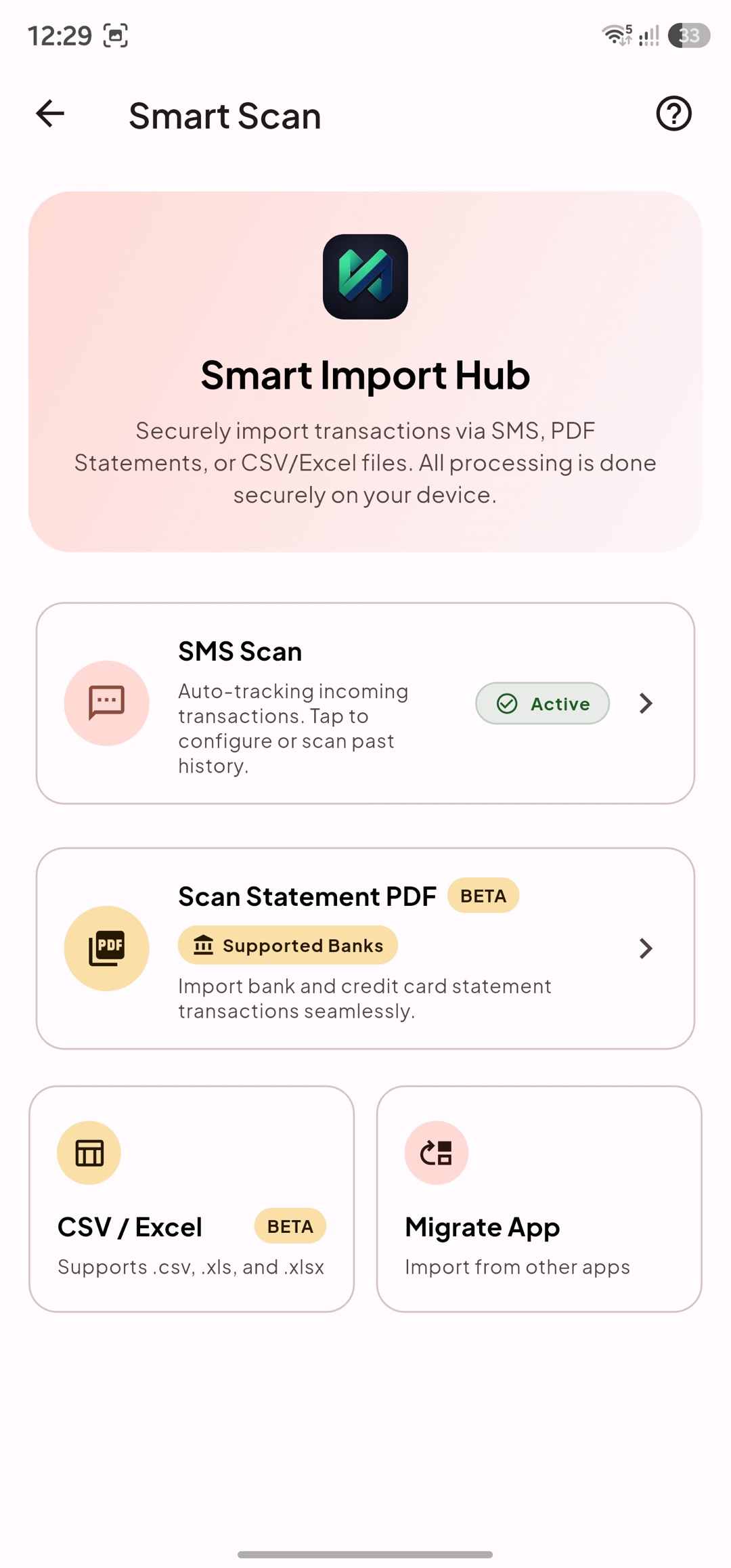
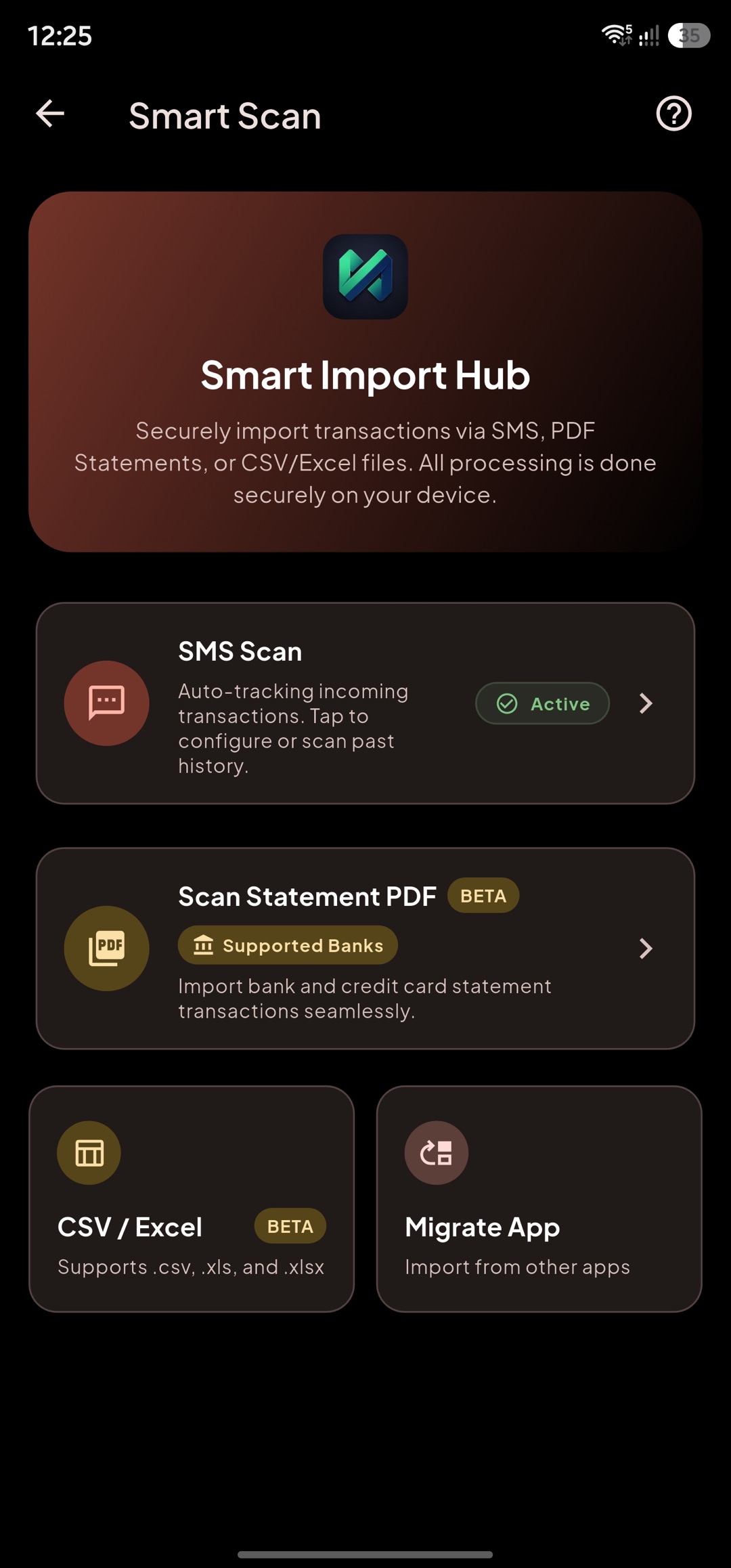
Section titled “Smart Scan Home”Smart Scan automates transaction capture from supported sources so you spend less time on manual entry.
Home screen purpose:
- Start import flows.
- Monitor scan status.
- Access review/finalization surfaces.
Before scanning:
- Ensure account setup is clean.
- Ensure categories/tags are reasonably organized.
- Confirm you are importing within the right time window.
Good practice:
- Scan frequently in smaller batches for easier review quality.
Financial Notifications (Android)
Section titled “Financial Notifications (Android)”Financial Notifications is an optional background source. It is off by default and requires both Android Notification Access and at least one app selected inside MoneySplit. MoneySplit rejects notifications from unselected apps before reading their title or text.
Choose the behavior independently from SMS scanning:
- Ask me first shows a review notification without creating a transaction.
- Add to Pending Review creates an unconfirmed item for review.
- Auto add creates only transactions that pass the existing high-confidence safety checks; uncertain items are sent to review.
Notification transactions use the same parsing, account matching, duplicate detection, transfer detection, and payment detection as SMS. If the same transaction arrives by SMS and notification, MoneySplit keeps one transaction. Raw notification text is not saved as the transaction note or included in logs, analytics, or backups.
You can remove an app at any time. Disabling access, unselecting an app, or choosing Clear notification scan data removes queued notification content and processing metadata. Android may still show Notification Access as enabled until you revoke it in system settings.
Scan Results
Section titled “Scan Results”Scan Results is the critical validation step before data becomes part of core reporting.
What to verify:
- Account match.
- Amount direction and value.
- Category and tag mapping.
- Duplicate detection behavior.
Recommended review flow:
- Resolve account mapping first.
- Confirm high-value entries next.
- Fix obvious category/tag mismatches.
- Reject uncertain items instead of force-importing.
Quality rule:
- A slower, accurate review is better than fast noisy data.
Statement Review
Section titled “Statement Review”Statement Review focuses on structured statement-derived records.
Use it to:
- Validate extracted rows.
- Correct mapping before creation.
- Handle ambiguous lines safely.
Checklist:
- Dates are parsed correctly.
- Debits/credits are interpreted correctly.
- Duplicate records are not re-imported.
- Account destination is correct.
If extraction seems wrong:
- Pause import.
- Fix mapping assumptions.
- Re-run instead of importing questionable data.
Summary & Finalize
Section titled “Summary & Finalize”Summary & Finalize gives a post-review outcome snapshot and next actions.
What it should answer:
- How many entries were accepted/rejected.
- Which records need follow-up correction.
- Whether data now looks complete for reporting.
After finalizing:
- Open Transaction History and spot-check recent imports.
- Reconcile any flagged obligations (bills/subscriptions/loans).
- Revisit Dashboard/Insights and confirm trends now make sense.
Long-term approach:
- Use Smart Scan as assistive automation.
- Keep human validation in the loop for data trustworthiness.
CSV & Excel Import
Section titled “CSV & Excel Import”Use CSV or Excel imports for bank exports, spreadsheets, and exports from other finance apps. Confirm the date, amount, account, category, and subcategory columns before continuing.
Review the transactions before importing. If a source row has no description, its description stays empty; import metadata is never shown as a transaction description.
For category data, Smart Scan matches the full parent and child path. A matching parent is reused, while a missing imported child category is added under that parent.
Migrate from Another App
Section titled “Migrate from Another App”Choose a supported app and follow its export instructions before uploading the file. Known formats use their built-in mapping, so migration does not ask you to save a generic CSV mapping preset.
For Money Manager imports, a Transfer-Out is treated as a transfer from the Account column to the Category column when both accounts are available. The import rechecks these links after account setup, so transfer detection also works on the first review.
Money Manager category icons are ignored. Existing matching categories are reused and missing imported parent or child categories are created. Placeholder values such as numeric category IDs are not made into categories.
Setup Accounts & SMS Matching
Section titled “Setup Accounts & SMS Matching”Review the accounts detected from the file and rename them before importing if needed. Your chosen name is used in the transaction review and for the created account.
For accounts that receive background SMS scans, add only the last 3–5 identifying digits when useful, such as HDFC - 1234. Matching digits help connect future messages to the right account. Do not enter a full account or card number.
Account types inferred from a file are suggestions. Confirm or change them during setup when the source does not provide an account type.
Import Progress
Section titled “Import Progress”After you choose final import, Smart Scan returns to its main screen and shows progress there. Keep the app open until the import completes whenever possible.
While an import is running, SMS history, PDF statement, CSV/Excel, and migration options are temporarily unavailable. This prevents overlapping imports and duplicate transactions.
Custom SMS Rules
Section titled “Custom SMS Rules”Custom SMS Rules are available from Smart Scan settings. Use a rule for a supported but unrecognized SMS sender, then test it against a representative message before relying on automatic parsing.
Keep sender patterns specific and use a clear rule name. Edit or disable a rule if its sender changes or it begins to produce incorrect transactions.
Supported Banks & Formats
Section titled “Supported Banks & Formats”Use Supported Banks & Formats to search the statement parsers available for bank accounts and credit cards. The list shows supported statement types and useful search keywords.
If your bank is not listed, try a standard PDF statement anyway: the generic table parser can extract transactions from many conventional bank PDFs. Always review extracted dates, amounts, and directions before importing.